

How To Setup Scoop Blogger Template [TemplatesYard]

Scoop Blogger Template is a stylish and attractive Beauty and Magazine Blogspot Theme. It is crafted for a lifestyle magazine, fashion magazine, online news, health and beauty tips, creative design, web design, and health tips blog. To make it easy for you. we have published this detailed documentation so that you can set up your blog correctly. You have made a good decision by choosing our template.
You can check the live demo or download the template through the button below and also Please Read this documentation carefully in order to set up your blog and please note that there’s no support for free users.
Basic Setup
Video Documentation
You can check this below video to understand the setup process much more easily, just click the below image to watch the video directly on YouTube, or click this link – How To Setup Scoop Blogger Template – TemplatesYard

Top Navigation / Footer Menu
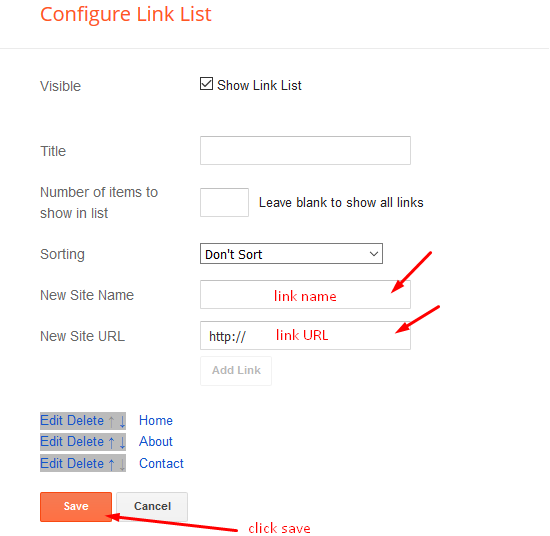
Access your blog Layout > click Edit icon on Top Navigation or Footer Menu widget. 
Social Top
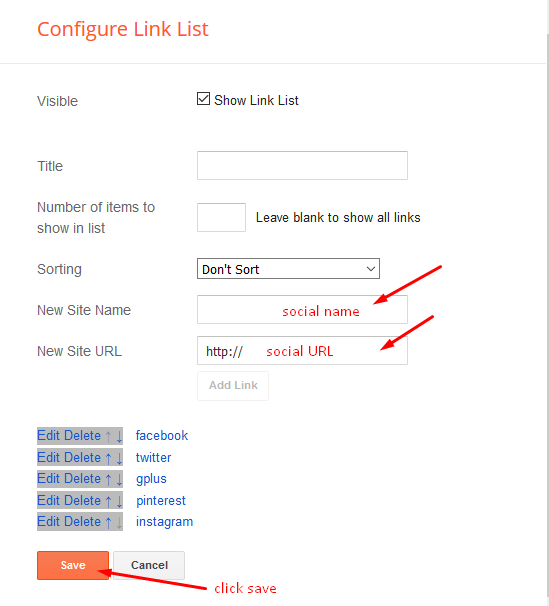
Access your blog Layout > click Edit icon on Social Top widget. Icons Avaliables { facebook, twitter, gplus, rss, youtube, skype, stumbleupon, tumblr, vk, stack-overflow, github, linkedin, dribbble, soundcloud, behance, digg, instagram, pinterest, twitch, delicious, codepen, reddit, whatsapp, snapchat, email } 
Main Menu/DropDown/Multi DropDown
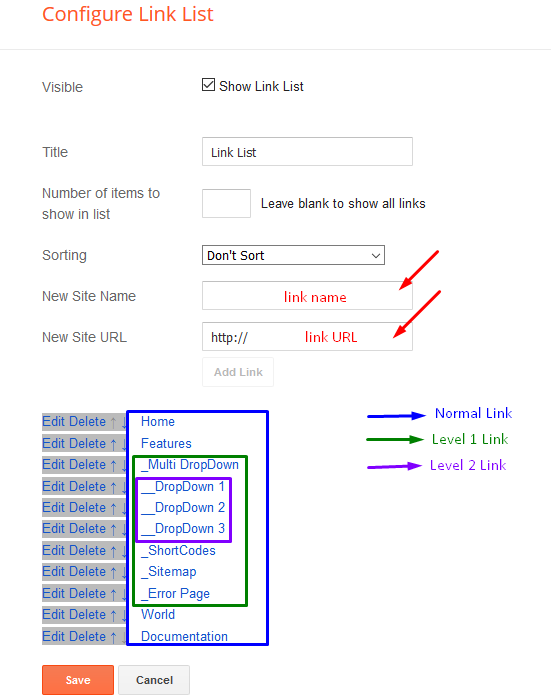
Access your blog Layout > click Edit icon on Main Menu widget. Normal Link : Features Sub Link: _Sub Link 1.0 (before the link add “_“) 1 underscore Sub Link 2: __Sub Link 1.1 (before the link add “__“) 2 underscore 
Access your blog Layout > click Edit icon on Main Menu widget.
Normal Link : Features
Sub Link: _Sub Link 1.0 (before the link add “_“) 1 underscore
Sub Link 2: __Sub Link 1.1 (before the link add “__“) 2 underscore
Hot Posts
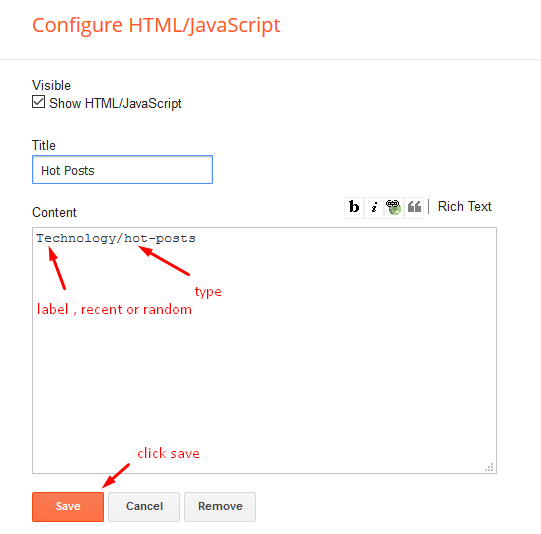
Access your blog Layout > click Add a Gadget > HTML/JavaScript on Hot Posts section, you must place the following names highlighted in blue below. Shortcode: Label, recent or random/hot-posts Example: Technology/hot-posts 
Access your blog Layout > click Add a Gadget > HTML/JavaScript on Hot Posts section, you must place the following names highlighted in blue below.
Shortcode: Label, recent or random/hot-posts
Example: Technology/hot-posts
b) With Popular Post
Access your blog Layout > click Add a Gadget > Popular Posts on Hot Post section, you set the settings as below Widget Settings: 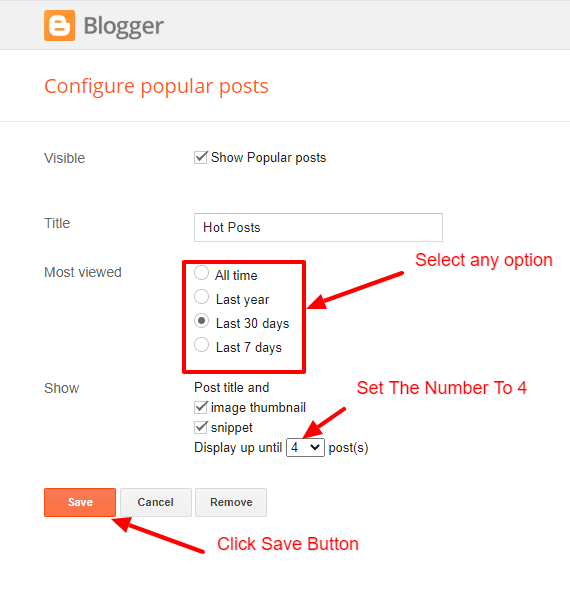
Access your blog Layout > click Add a Gadget > Popular Posts on Hot Post section, you set the settings as below
Widget Settings:

Featured Post
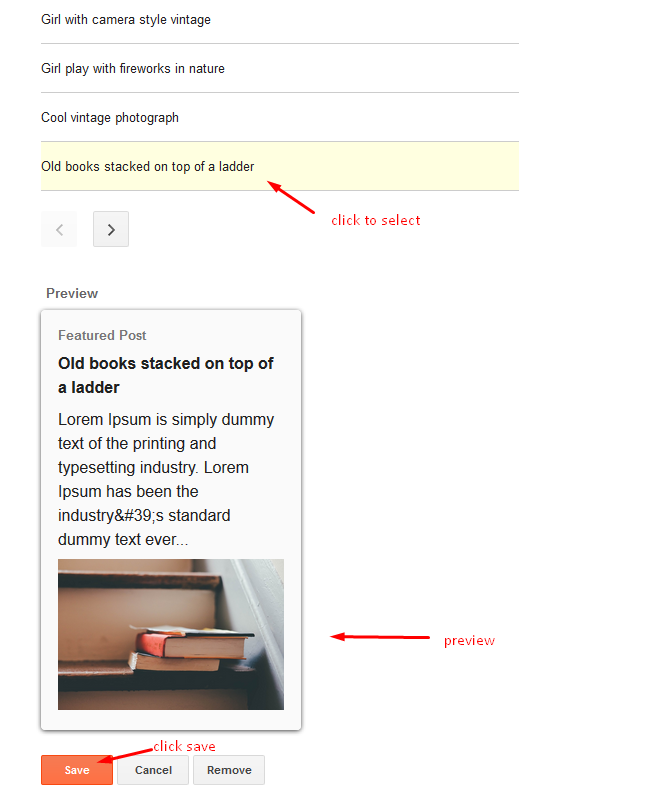
Access your blog Layout > click Add a Gadget > Featured Post on Featured Post section, select the post you want to show and click save. 
Main Post Settings
Access your blog Layout > click Edit Icon on > Main Posts/Blog Posts. 
Access your blog Layout > click Edit Icon on > Main Posts/Blog Posts.

Post List Widget
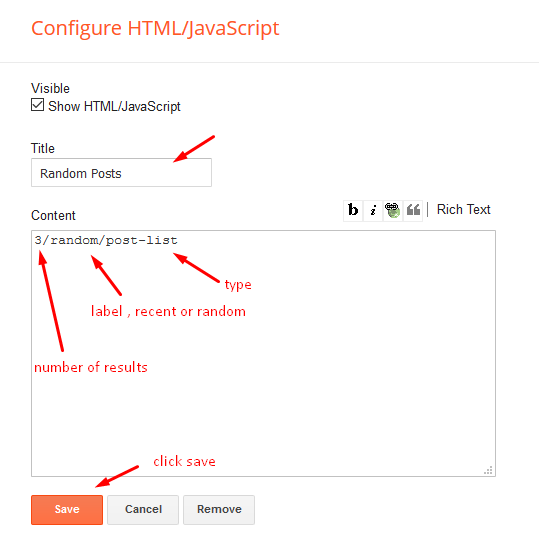
Access your blog Layout > click Add a Gadget > HTML/JavaScript on Sidebar or Footer section, you must place the following names highlighted in blue below. Shortcode: Results number/Label, recent or random/post-list Label Posts: 3/Technology/post-list Recent Posts: 3/recent/post-list Random Posts: 3/random/post-list 
Access your blog Layout > click Add a Gadget > HTML/JavaScript on Sidebar or Footer section, you must place the following names highlighted in blue below.
Shortcode: Results number/Label, recent or random/post-list
Label Posts: 3/Technology/post-list
Recent Posts: 3/recent/post-list
Random Posts: 3/random/post-list
Social Widget (Sidebar)
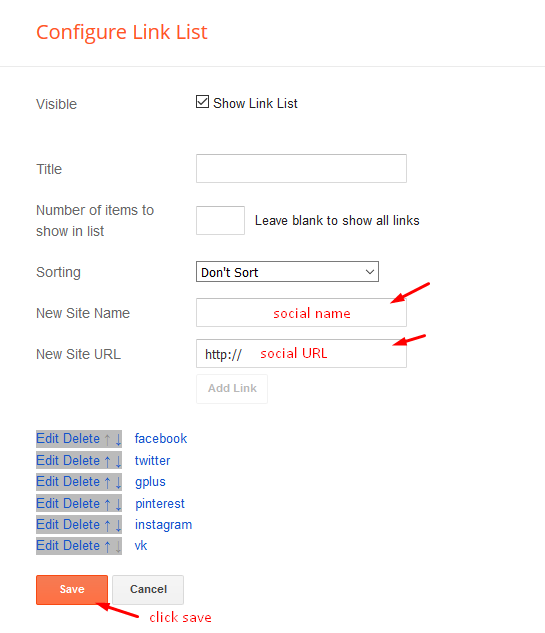
Access your blog Layout > click Edit icon on Social Widget widget. Icons Avaliables { facebook, twitter, gplus, rss, youtube, skype, stumbleupon, tumblr, vk, stack-overflow, github, linkedin, dribbble, soundcloud, behance, digg, instagram, pinterest, twitch, delicious, codepen, reddit, whatsapp, snapchat, email } 
Access your blog Layout > click Edit icon on Social Widget widget.
Icons Avaliables { facebook, twitter, gplus, rss, youtube, skype, stumbleupon, tumblr, vk, stack-overflow, github, linkedin, dribbble, soundcloud, behance, digg, instagram, pinterest, twitch, delicious, codepen, reddit, whatsapp, snapchat, email }
Post Layouts
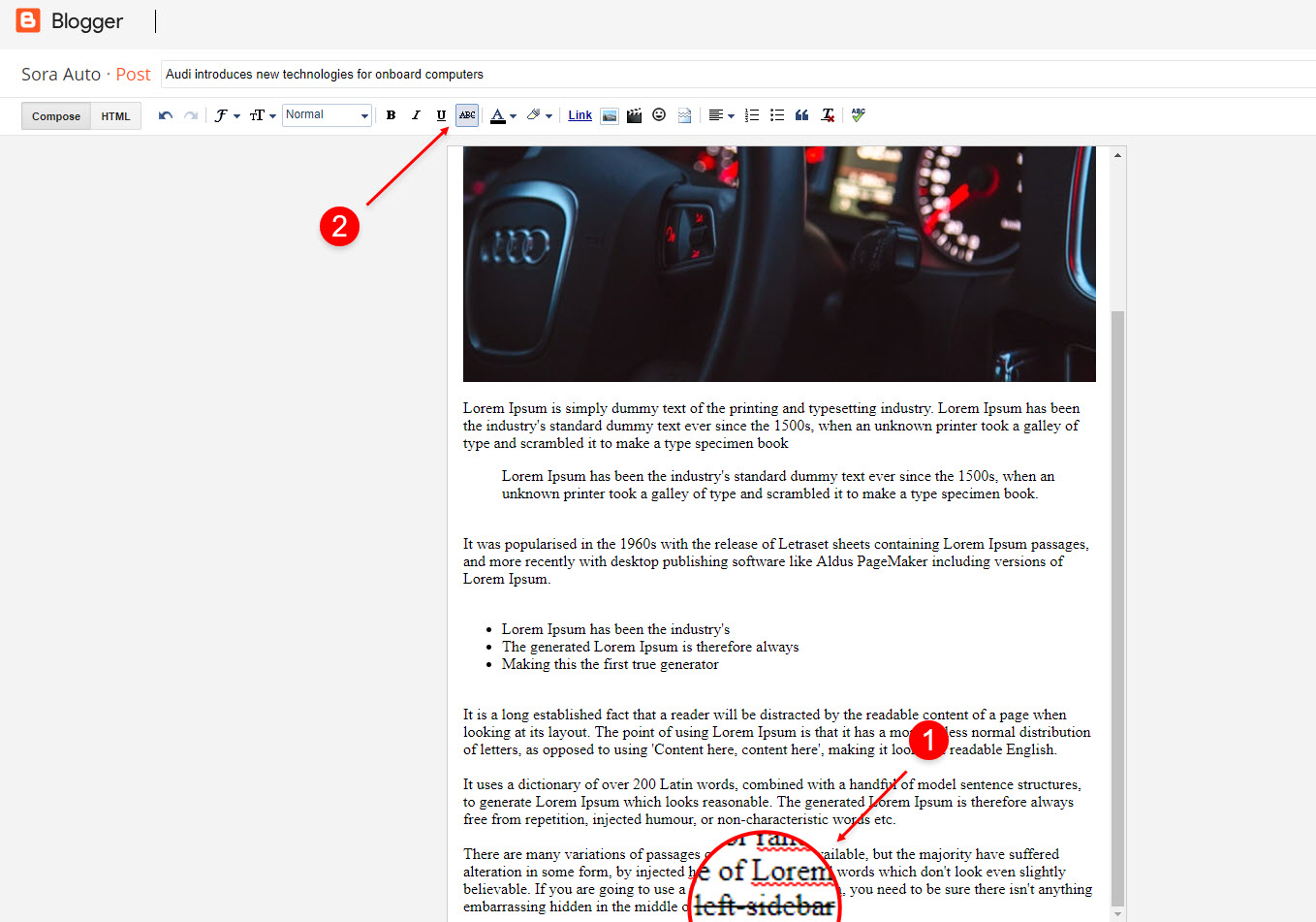
Left Sidebar: Inside the post add the text left-sidebar and add the style Strikethrough Full Width: Inside the post add the text full-width and add the style Strikethrough Right Sidebar: Inside the post add the text right-sidebar and add the style Strikethrough 
Left Sidebar: Inside the post add the text left-sidebar and add the style Strikethrough
Full Width: Inside the post add the text full-width and add the style Strikethrough
Right Sidebar: Inside the post add the text right-sidebar and add the style Strikethrough
Ads on post pages
Access your blog Layout > click Edit icon on in the sections Post ADS 1 ( before content ) , Post ADS 2 ( after content ) or Post ADS 3 ( after related posts ). HTML/JavaScript Ex: 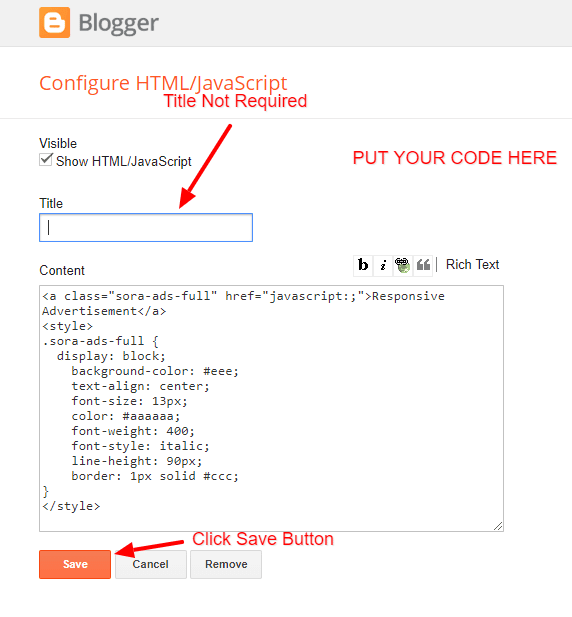
Access your blog Layout > click Edit icon on in the sections Post ADS 1 ( before content ) , Post ADS 2 ( after content ) or Post ADS 3 ( after related posts ).
HTML/JavaScript Ex:

Theme Options
01 – Css Options
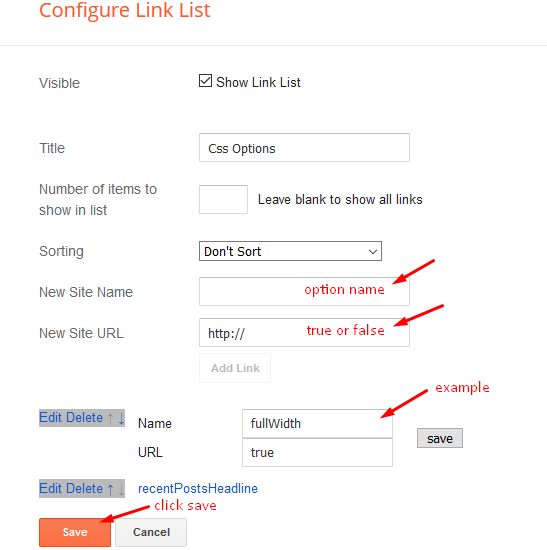
Access your blog Layout > click Edit icon on Css Options widget. Full Width: In New Site Name add fullWidth, in New Site URL add true or false, after click on save button. Recent Posts Headline: In New Site Name add recentPostsHeadline, in New Site URL add true or false, after click on save button. 
Access your blog Layout > click Edit icon on Css Options widget.
Full Width: In New Site Name add fullWidth, in New Site URL add true or false, after click on save button.
Recent Posts Headline: In New Site Name add recentPostsHeadline, in New Site URL add true or false, after click on save button.
02 – Default Variables
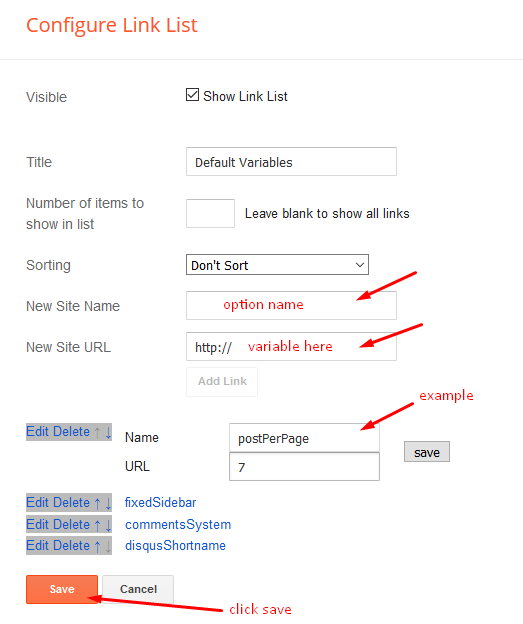
Access your blog Layout > click Edit icon on Default Variables widget. Post Per Page: In New Site Name add postPerPage, in New Site URL add the number of results, it should be the same as the posts from the home page, after click on save button. Fixed Sidebar: In New Site Name add fixedSidebar, in New Site URL add true or false, after click on save button. Fixed Menu: In New Site Name add fixedMenu, in New Site URL add true or false, after click on save button. Comments System: In New Site Name add commentsSystem, in New Site URL add the comments sytem type {blogger, disqus, facebook or hide}, after click on save button. Disqus Shortname: In New Site Name add disqusShortname, in New Site URL add your disqus comment system shortname, after click on save button. 
Access your blog Layout > click Edit icon on Default Variables widget.
Post Per Page: In New Site Name add postPerPage, in New Site URL add the number of results, it should be the same as the posts from the home page, after click on save button.
Fixed Sidebar: In New Site Name add fixedSidebar, in New Site URL add true or false, after click on save button.
Fixed Menu: In New Site Name add fixedMenu, in New Site URL add true or false, after click on save button.
Comments System: In New Site Name add commentsSystem, in New Site URL add the comments sytem type {blogger, disqus, facebook or hide}, after click on save button.
Disqus Shortname: In New Site Name add disqusShortname, in New Site URL add your disqus comment system shortname, after click on save button.
Facebook Page Plugin
Access your blog Layout > click Add a Gadget > HTML/JavaScript on Sidebar or Footer section, and paste the code below. <center><div class=”fb-page” data-href=”https://www.facebook.com/templatesyard” data-width=”360″ data-small-header=”false” data-adapt-container-width=”true” data-hide-cover=”false” data-show-facepile=”true”></div></center> Note: In Attribute data-href replace the link per your facebook page url.
Customizing Your Template
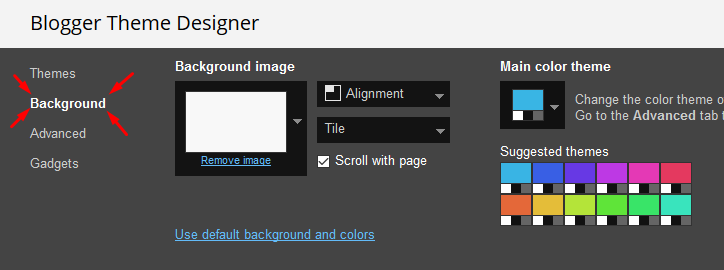
Access your blog Theme > click Customize button.
Here you can change the background, and apply pre-defined colors
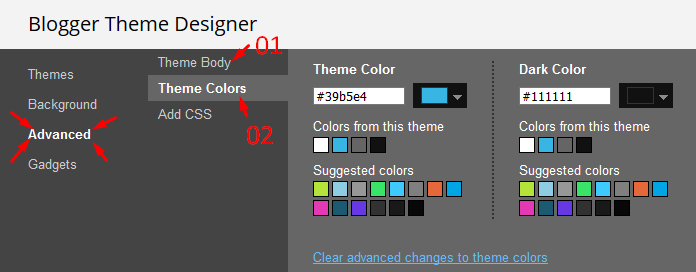
Clicking Advanced You will see the official option to change the Main Colors
Installation And Custom Services
We provide plenty of templates for free but if you want something unique for your blog then let us create a unique design for your blog, Just tell us your needs and we will convert your dream design into reality. We also Provide Blogger Template Installation Service. Our Installation service gives you a simple, quick and secure way of getting your template setup without hassle.
Only Premium Buyers will get the widget codes available in the demo.
If you are a premium version user and you are having any problem while setting up the template please contact us by going to this link (Contact Form).

